
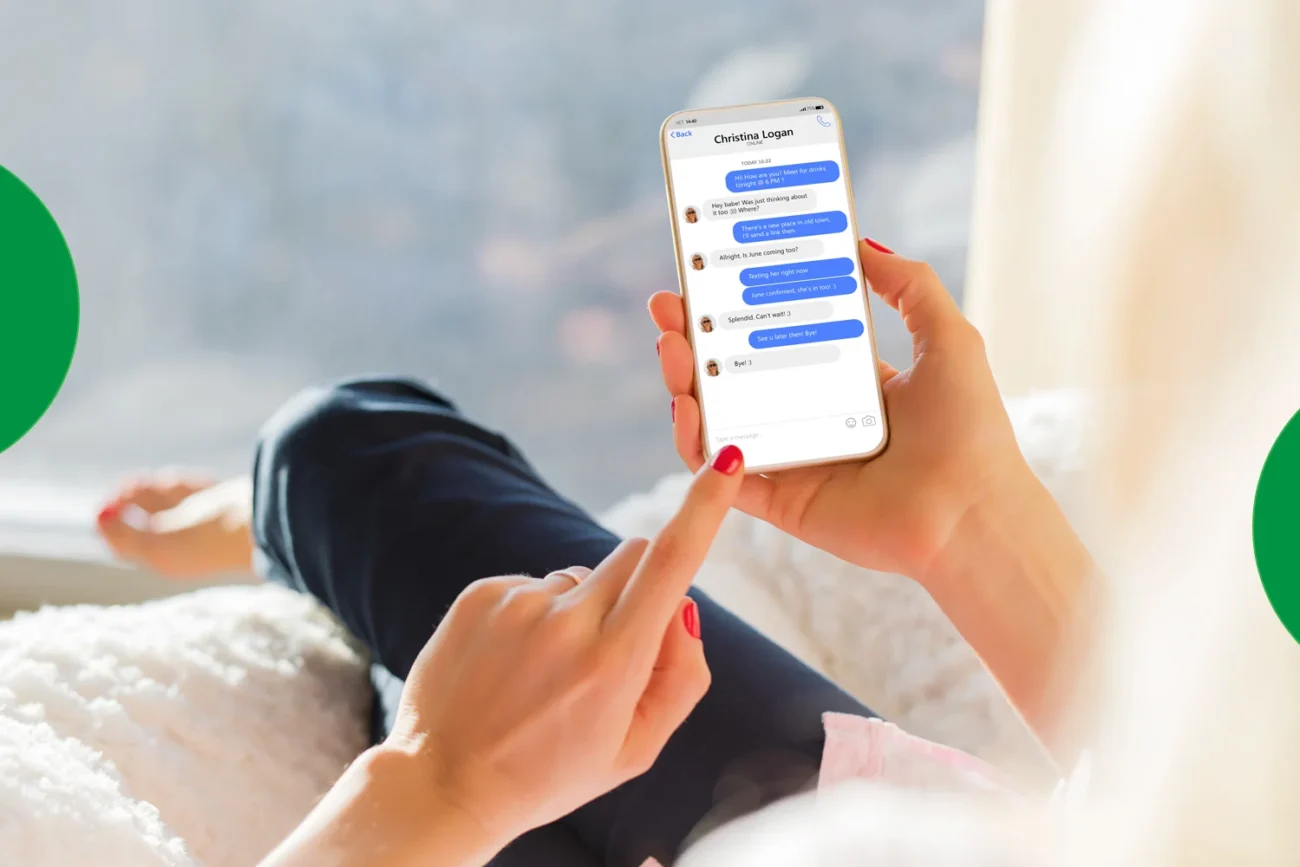
Quick fun intro before we start:
You know that moment when your message turns green and your soul quietly leaves your body? 😭
Yep—that’s iMessage refusing to cooperate. But relax. By the end of this guide, you’ll know exactly how do I enable iMessage, why it sometimes misbehaves, and how to keep it working smoothly—even while traveling internationally.
Quick Answer (Because You’re Here for That)
How do I enable iMessage on iPhone?
- Go to Settings → Messages
- Toggle iMessage ON
- Tap Send & Receive
- Select your phone number and Apple ID email
That’s it.
If it works—amazing. If not—keep reading, because we’ve got fixes.
What Is iMessage (And Why Everyone Wants It)
iMessage is Apple’s internet-based messaging service. Unlike SMS, it:
- Uses Wi-Fi or mobile data
- Sends messages instantly
- Keeps photos & videos crystal clear
- Syncs across Apple devices
- Works internationally
Blue bubbles = iMessage
Green bubbles = regular SMS
Once you enable it properly, texting feels… premium.
How Do I Enable iMessage on iPhone (Step-by-Step)
Let’s answer how do I enable iMessage properly, without missing anything.
Step 1: Open Settings
Go to Settings → Messages
Step 2: Turn ON iMessage
Toggle the switch. It should turn green.
Step 3: Check “Send & Receive”
Tap Send & Receive and make sure:
- Your phone number is selected
- Your Apple ID email is checked
Step 4: Wait for Activation
Activation usually takes a few seconds. Sometimes a few minutes.
If it takes longer than an hour—don’t panic, we’ll fix it below.
💡 Note: Apple may send a silent SMS to activate iMessage. This is normal.
How Do I Enable iMessage on iPad or Mac
No SIM? Still works.
On iPad:
- Settings → Messages → iMessage ON
- Sign in with your Apple ID
- Use email under Send & Receive
On Mac:
- Open Messages App
- Settings → iMessage
- Sign in with Apple ID
- Enable Messages in iCloud
Now your messages sync across devices like magic ✨
Why iMessage Isn’t Working (And How to Fix It)
If you’re stuck thinking “Why won’t this just work?”, you’re not alone.
Common iMessage Problems:
- “Waiting for activation”
- Messages turning green
- iMessage disabled randomly
- Not working after SIM change
Fixes That Actually Help:
- Restart your phone (boring but effective)
- Check Settings → General → Date & Time → Set Automatically
- Sign out of Apple ID → restart → sign back in
- Reset Network Settings
Using iMessage While Traveling (This Is Important)

Here’s where many travelers get confused.
iMessage does NOT need your original SIM to work.
It only needs internet.
That means:
- No roaming required
- No expensive SMS charges
- Works globally
Why Travelers Love Commbitz eSIM
With a Commbitz eSIM, you:
- Stay connected the moment you land
- Keep iMessage active via mobile data
- Avoid SIM swapping stress
- Use one eSIM across countries
Perfect for personal trips, business travel, or backpacking.
Pro Tips to Make iMessage Even Better
Once you enable iMessage, try these:
- Turn on Messages in iCloud (backup & sync)
- Use Read Receipts selectively
- Add reactions & stickers (fun > boring)
- Enable email as sender when traveling
Your iMessage experience becomes smoother, faster, and way more reliable.
FAQs: How Do I Enable iMessage (Real Questions)
1. How do I enable iMessage without a SIM?
Use Wi-Fi and your Apple ID email. Works perfectly.
2. Why does iMessage say “Waiting for activation”?
Network issues, wrong date/time, or Apple ID problems are common causes.
3. Can I use iMessage internationally?
Yes! iMessage works anywhere with internet.
4. Will iMessage stop if I change SIM cards?
No, as long as your Apple ID email is enabled.
5. Does iMessage cost money?
No. It’s free—only uses data.
Final Destination: Enable It Once, Enjoy It Everywhere
Now you truly know how do I enable iMessage, how to fix issues, and how to keep it working while traveling.
Quick recap:
- Enable iMessage in Settings
- Confirm Apple ID & number
- Use reliable data (Commbitz eSIM 👀)
- Enjoy blue bubbles worldwide
Stay Connected, Wherever You Go 🌍
Planning a trip?
Skip roaming bills and SIM swaps.
👉 Get a Commbitz eSIM and keep iMessage, maps, and memories flowing—border-free.
Because green bubbles are optional. Blue bubbles are a lifestyle. 💙
Get 10% OFF — Download Our App Now!
Enjoy instant savings when you buy eSIMs through our app.